The Personal Architect app requires that you enable Javascript in your browser.
Say hello to Personal Architect, the powerful tool powered by AI to help you design your space.
Get Started
In the Pro version of the product, you can create custom windows and doors using the Product Factory.
Get Started with custom products.
-
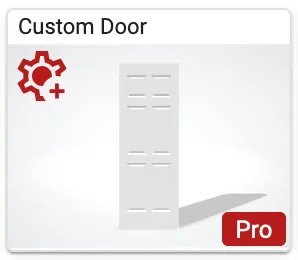
The first item in the list, for windows and doors is a custom element with the Product Factory symbol on it.
-
You will only see the product if you are a Pro user.
-
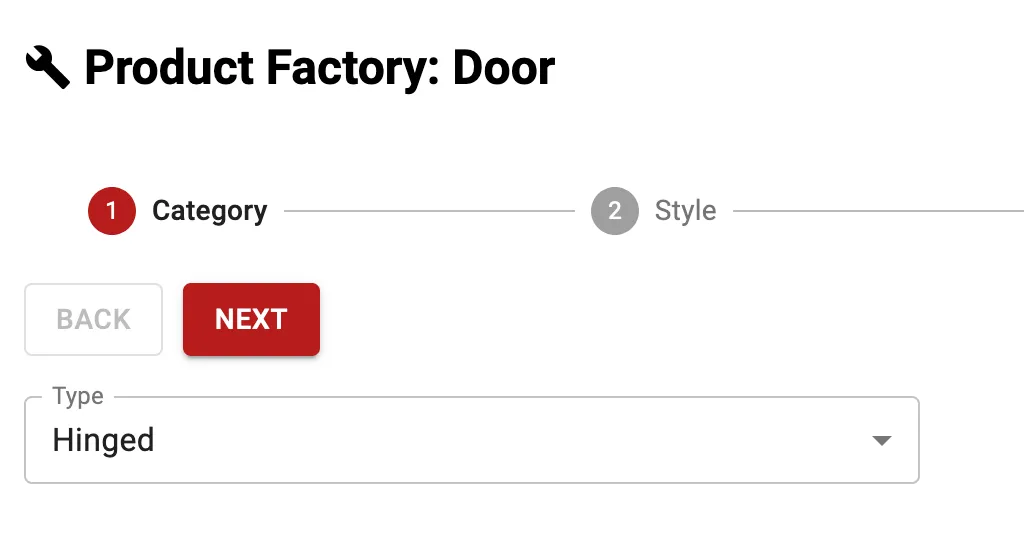
The Product Factory appears once you select the Custom Door object in the list of doors.
View previews.
-
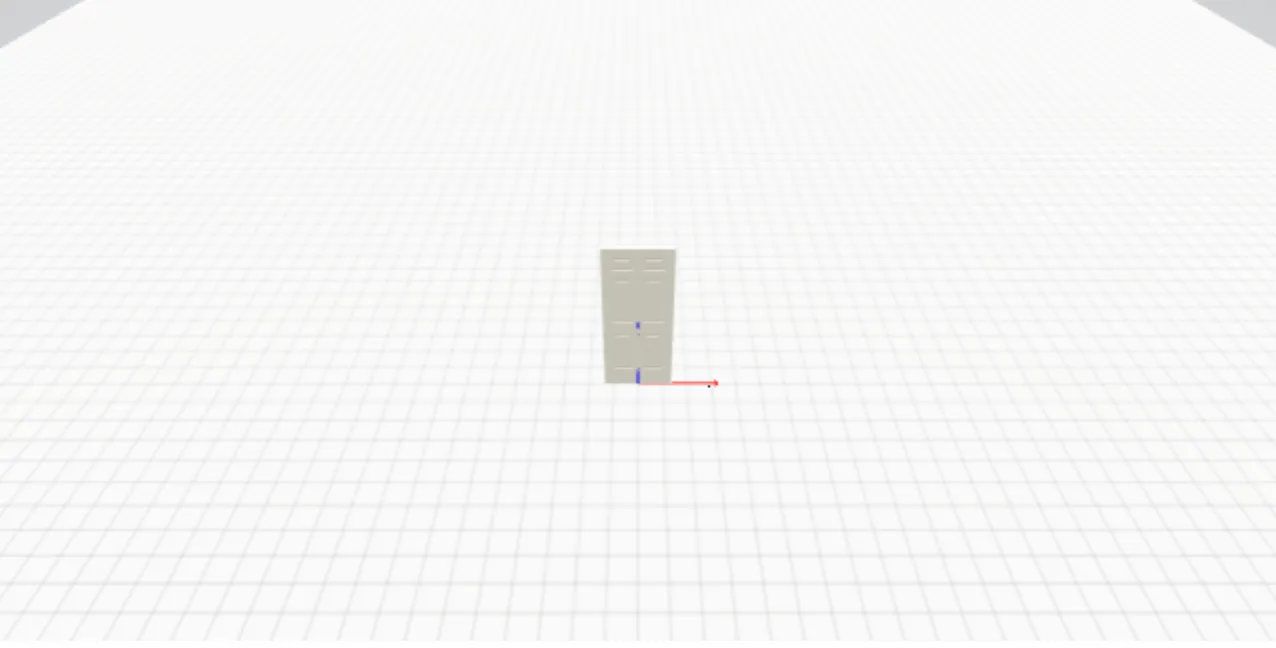
A preview of the new door is shown to the right and will update as you change options.
-
You can zoom in on the preview with the scroll wheel of your mouse or by a pinch motion on a tablet or smartphone.
-
By holding down your left mouse button or finger, you can rotate around the object to see all sides.
-
Select a type of door and click Next.
Product style.
-
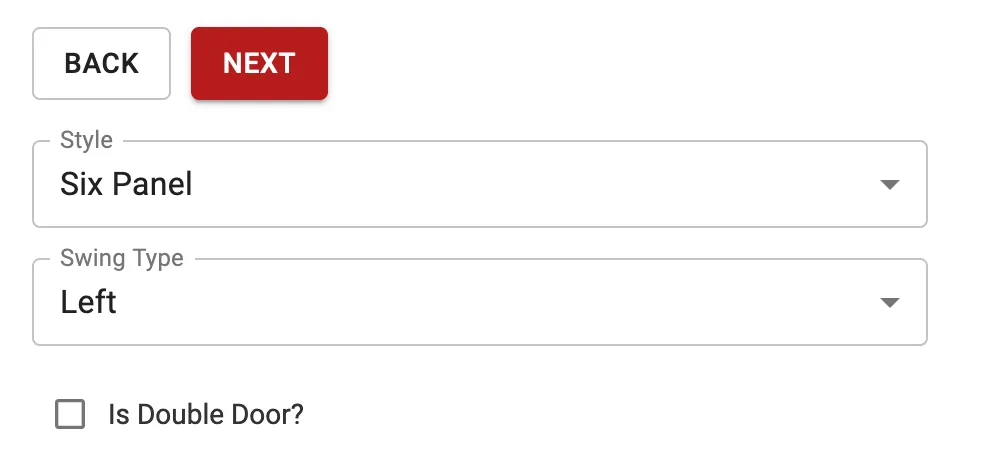
Depending on the door type selected, it will have different style and swing type options available.
-
For hinged and bi-fold doors you can select the Style and Swing Type.
-
For sliding doors, there is an option for Style.
-
After making selections about the style, click Next.
Size, material & basic info.
-
Enter in the Width and Height you desire for your product and click Next.
-
The Leaf Material can be selected from the pallette shown or by typing in a specific RGB color number.
-
Once you have the color selected, click Next.
-
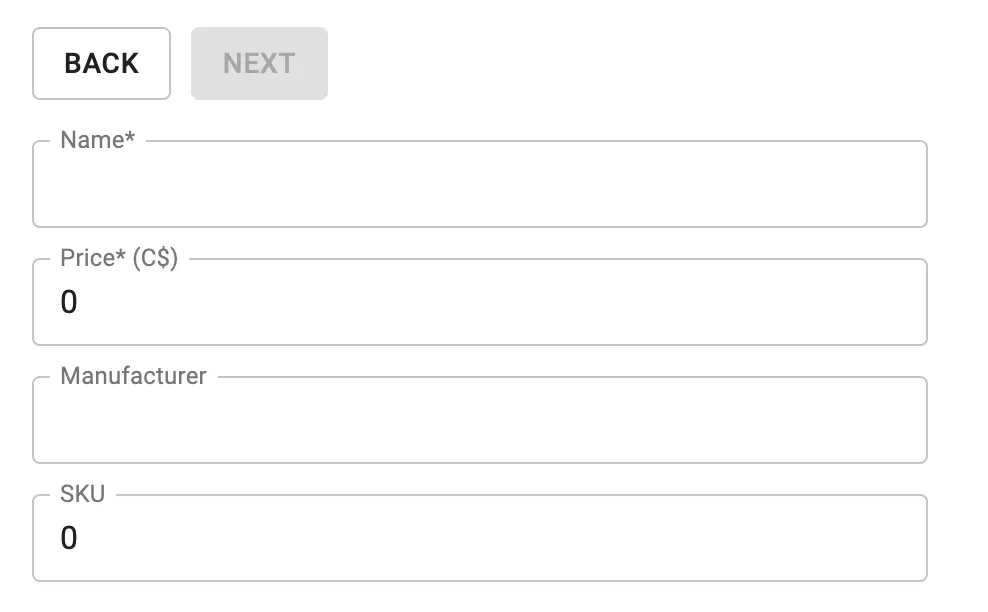
Now give the basic information about the door.
-
The name, the price, the manufacturer and the sku that will be used to identify and filter the door once it is part of the catalog.
-
You will not be able to click Next until the information is complete.
Review your creation.
-
The final step is Review.
-
All of the information you provided about the custom door is displayed with the preview on the right.
-
Review the selections, click Back if you need to change anything or Finish if you want to add it to the catalog.
-
You will be prompted to click Yes or No if you want to add the door to the catalog.
-
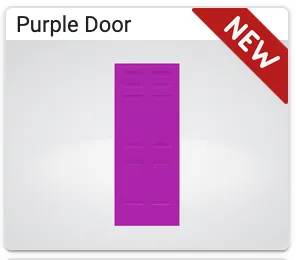
Once you click Yes, you will be returned to the design tool and the new element will be in the catalog with a New banner on it.